March 24, 2026·Product
How to recreate an existing store with Bloom
Carla Böddeker

Carla Böddeker
Step-by-step guide on how to recreate your existing store within an hour using Bloom.
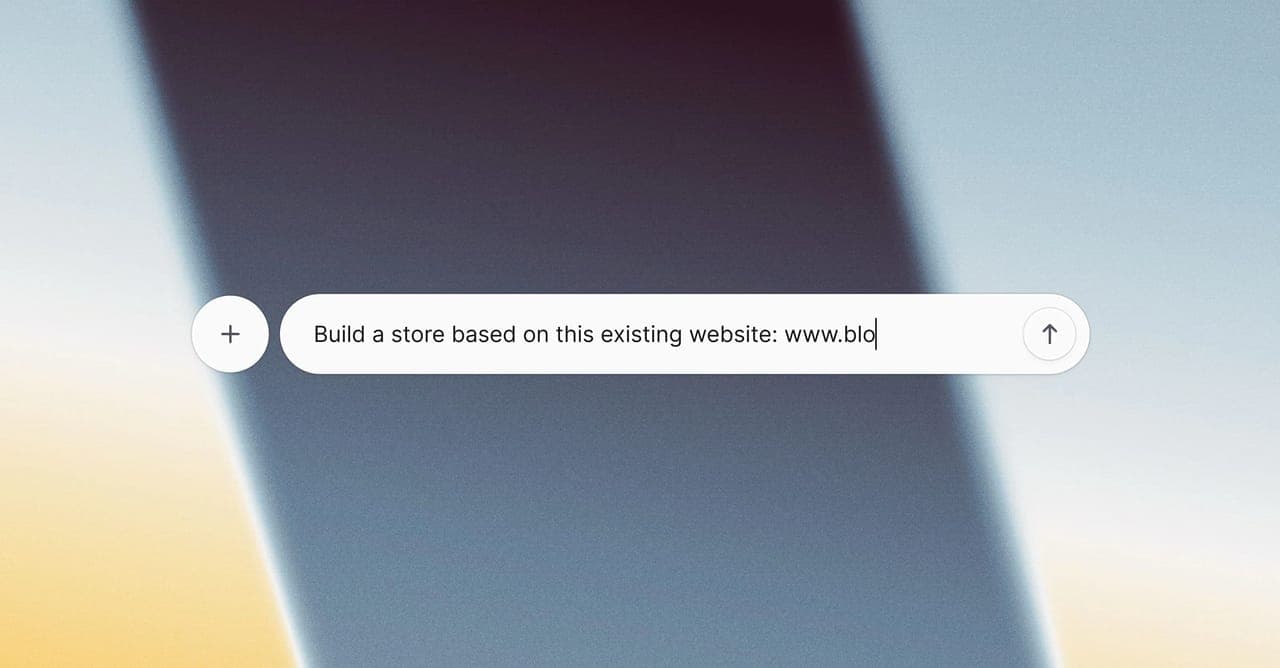
You don't need to be a developer to build a truly custom online store with Bloom. You need a clear starting point, the right prompts, and about an hour of time.
This guide covers the best practices for using Bloom: from generating your first prompt, to refining the details that make a store feel right.
We'll use a real example throughout: Little Folds (a D2C baby product brand).
TL;DR
- Step 1: Generate your prompt with AI, not in Bloom. Use ChatGPT or Claude to turn a URL or Figma file into a structured Bloom prompt. It produces better results than writing one from scratch.
- Step 2: Work page by page. Start with the homepage, then move to PLP, PDP, and cart. Use the right terminology (navbar, sidecart, product card) and use screenshots t0 set clear direction.
- Step 3: Build out subpages with references. Point Bloom to pages by URL path. Use screenshots or Figma frames to show what you want, and use Selection Mode to click directly on any element in the preview.
- Step 4: Get the details right with exact inputs. Copy-paste HTML for icons, upload logos and images directly, and give HEX codes for specific colors. If Bloom nailed a component somewhere, tell it to reuse it rather than rebuild it. If something isn't working, stay focused on the specific issue and ask Bloom to try again.
Try Bloom
Recreate your existing store today with Bloom
Before you start
Bloom is an AI commerce building agent that works from natural language. The better your prompts, the faster it builds. There are two common starting points:
A URL: an existing store you want to replicate or use as a reference. The fastest way to get Bloom aligned on brand, layout, and product catalog in one go.
A Figma file: a design that hasn't been built yet. Share images of frames directly into the chat and Bloom will work from the visuals.
In Step 1, we'll turn whichever starting point you have into a structured Bloom prompt.
Step 1: Generate your Bloom prompt with AI
Let's get started with your initial prompt. It has proven to produce better results if you let an AI assistant like ChatGPT or Claude write it for you.
Here's an example prompt to get you started (paste this into your AI assistant, not into Bloom):
123456789101112131415Help me draft a prompt for Bloom, an AI commerce building agent that generates storefronts from natural language.I want to rebuild an existing D2C ecommerce store for this brand: https://www.littlefolds.com/Analyze the website to understand the brand, products, visual identity, and structure.Then, based on this, write a clear and structured prompt for Bloom that:- explicitly includes the URL of the existing website as a reference, instructing Bloom to analyze and replicate what it sees there- recreates the store as closely as possible in its native branding (layout, style, tone)- uses the same brand feel, colors, and visual identity- reflects the same product catalog, categories and navigation structure- reuses logos, images, and visual assets directly from the existing website (do not generate new images)The final output should be a ready-to-use Bloom prompt, that clearly instructs Bloom to use the provided URL as the primary source for rebuilding the store.
What you get back is two things: a brand summary and a structured prompt ready to paste into Bloom. Once you have this, paste it directly into Bloom.
Depending on the complexity of your store, the initial build takes around 1-5 minutes. It won't be pixel-perfect straight away, but it should give you a solid structural foundation to work from. Here's what the initial build looked like for our example:
Initial build after first prompt.
Step 2: Review the initial build and go into detail
Once the first version is live in preview, you can go into refining your store.
Use the right words, be specific:
You don't need to know all the terminology, but using the right words does help Bloom get there faster.
Instead of "fix the top navigation" → say "update the navbar to include a megamenu with two columns"
Instead of "the top navigation feels off" → paste a screenshot and say "make the navbar look exactly like in the screenshot here"
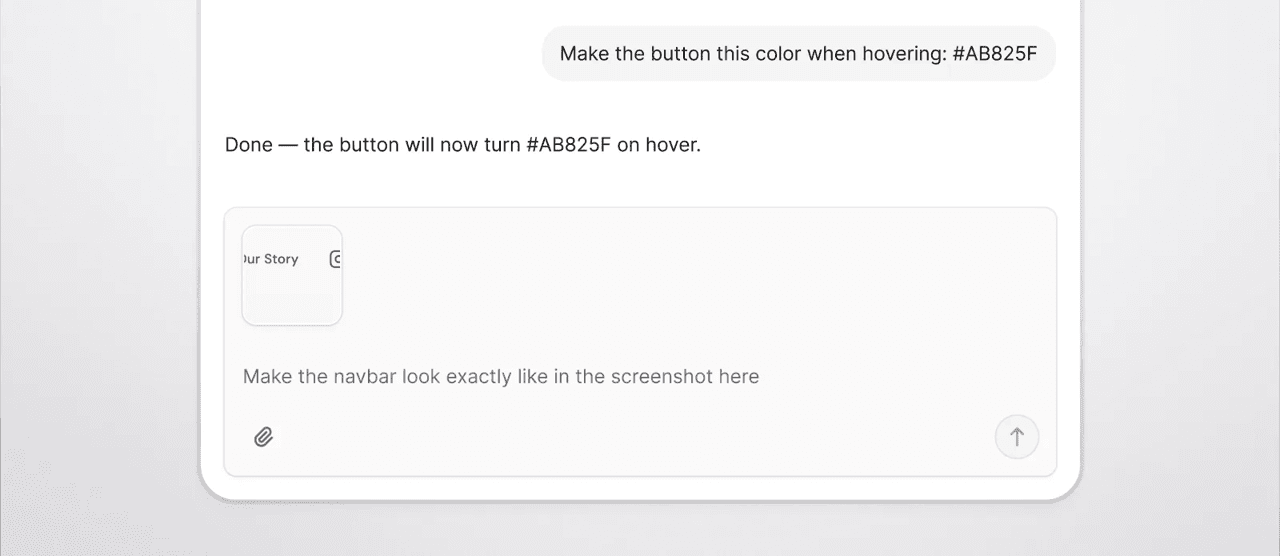
A few helpful terms:
- PDP (product detail page): the individual product page
- PLP (product listing page): the page where multiple products are listed, e.g. /store
- Sidecart: the cart drawer that slides in from the side when you add a product
- Megamenu: a large dropdown navigation menu, often with multiple columns and images
- Breadcrumb navigation: the clickable trail showing where you are in the store, e.g. Home > Women > Jackets
- Thumbnail gallery: the image viewer on a PDP with one large main image and smaller preview images below or to the side
- Product card: the individual tile showing a product in a grid, typically image, name, and price
Work page by page:
Don't try to perfect everything at once. A recommended order:
- Homepage (incl. navbar and footer)
- PLP (/store)
- PDP (/products/[slug])
- Cart + checkout
Step 3: Build out subpages
Once the homepage looks right, move through the remaining pages. Reference them by URL path (Bloom uses these to target the right files).
"On /store, add a filter on the left with facets for product type and size.”
Use screenshots or Figma frames to show Bloom exactly what you want. Paste or upload an image and describe where it applies:
"This is the PDP layout from our Figma file. Replicate this layout on the product page (thumbnail strip on the left, main image center, product info right).”
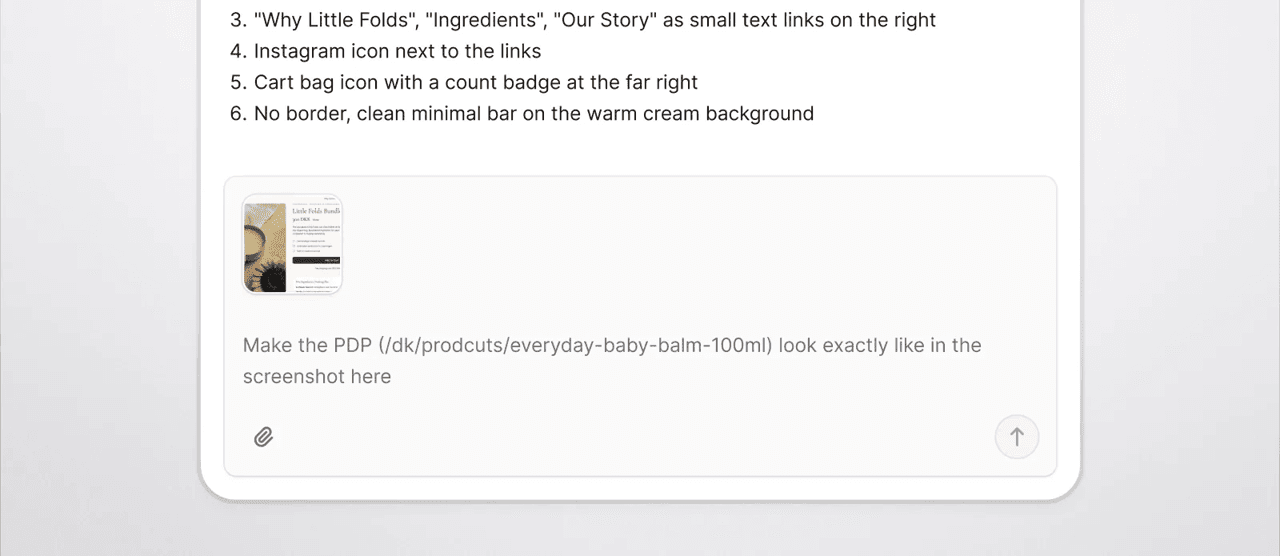
Use Selection Mode any time you're dealing with a specific, visible element rather than a page-wide change.
Use selection mode to edit specific elements.
Step 4: Nail the details: logos, icons, colors, images
Once the pages are in place, it's time to get the details right.
Icons and UI elements
If a specific UI element from the original site needs to be matched exactly, copy its HTML and hand it to Bloom:
"For the cart icon, use this to replicate the icon and button style: [paste HTML]"
Bloom will extract the icon (in this case a Lucide ShoppingCart), sizing, border radius, and color tokens from the markup.
Copy and paste HTML to replicate components.
Colors
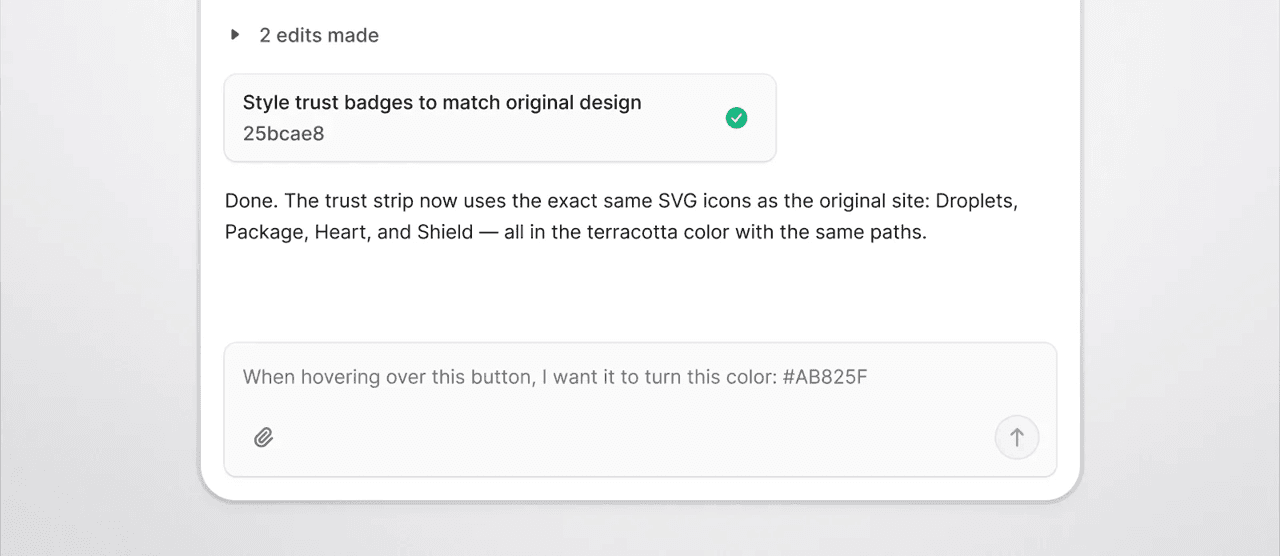
If Bloom doesn't nail a color, give it the HEX code directly:
"I want the primary button background to be this color: #AB825F”
Logos and images
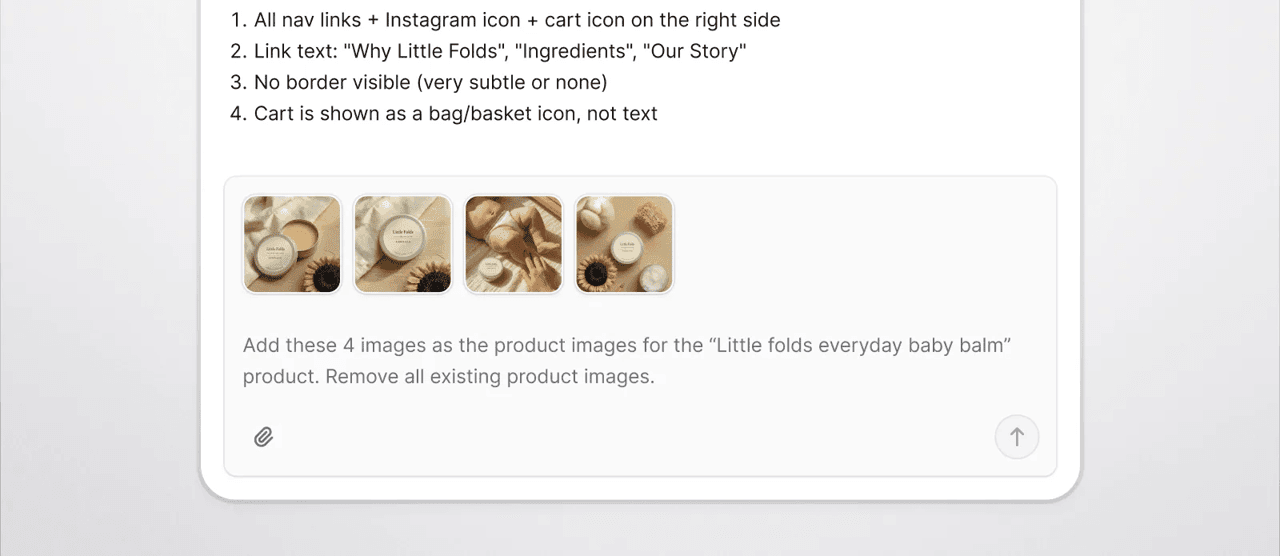
If you want to have specific images in your store, upload them directly in the chat and tell Bloom where to place them:
"Use this PNG as the logo in the top-left of the navbar."
“Add these 4 images as product images for product XYZ.”
Reuse components
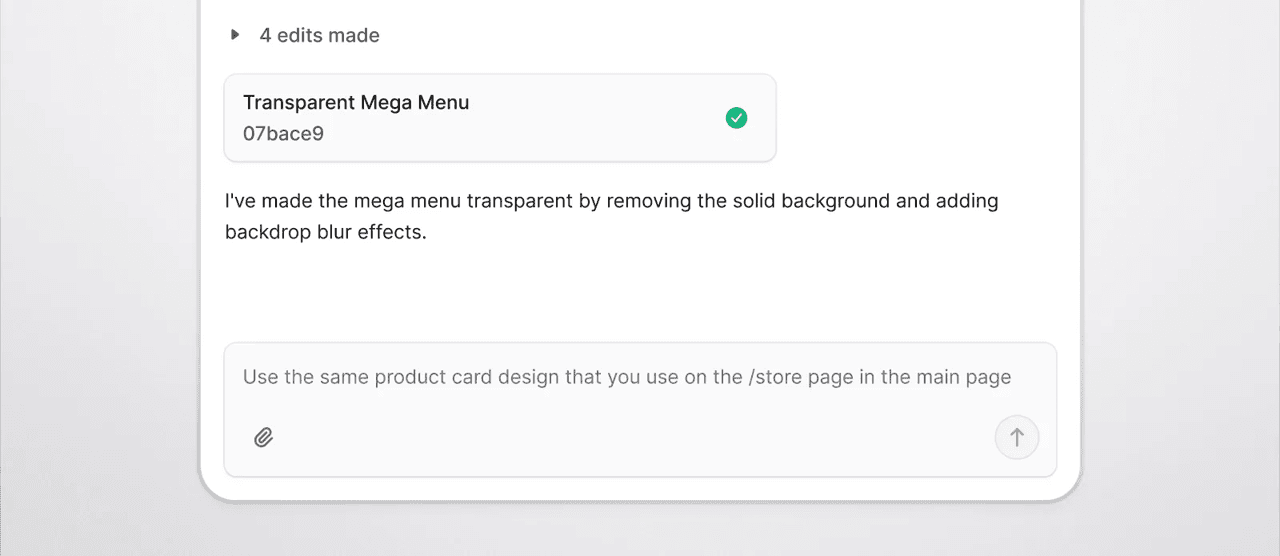
If Bloom nailed a certain component in your store, tell it to reuse existing components rather than create new ones. Again, it is really helpful to use specific terminology here. If you are unsure about what something is called, make use of selection mode and ask Bloom what it is called/what file that is.
"Use the same product card component from the homepage in the /store PLP grid."
This keeps your design consistent and makes building much faster.
Troubleshooting
Things won't always look like you want them to on the first try. Here's how to handle it.
If something doesn't look right, be specific about what's wrong:
"The sidecart is sliding in from the left. It should slide in from the right."
If a change doesn't take effect, ask Bloom to retry:
"The button still isn't linking to the cart. Try again."
If the preview isn't loading:
"The storefront preview isn't showing. Can you check what's blocking the render and fix it?"
Sometimes a change takes two or three prompts to land correctly. Don't rewrite everything. Stay focused on the specific issue.
Ready to build?
Head to bloom.chat to get started. If you want to dig deeper into what Bloom can do, the Bloom Docs cover everything you need to know.
If you'd rather not start from a blank canvas, check our Bloom starters. Starters give you a production-ready storefront foundation with essential commerce flows already in place. Pick the one closest to what you need and customize from there. More starters are being added regularly.